Convert your dive log, right in your browser
Drop a file from Subsurface, Garmin, Suunto, Divelogs.de or anything that writes UDDF, and take it out in the format your next app reads. Free, with no account and no upload.
What converts to what
Before you download, the report above the button shows exactly which fields the format you chose keeps and which it cannot hold.
In and out
Any of these converts to any other.
- UDDF
.uddf - Subsurface
.ssrf.xml - Divelogs.de
.dldExport not yet tested against a real Divelogs.de import. - Suunto Dive Manager (SDE)
.sdeImports into Dive Manager 3, 4 and 5. Pick the decimal separator your computer uses. Not yet tested against a real Dive Manager. - Suunto SML
.zip.smlOne file per dive, zipped: unpack, then SuuntoLink → Import dive logs sends the folder to the Suunto app. Not yet tested against SuuntoLink. - CSV (spreadsheet)
.csvReads CSV made by this converter.
Read only
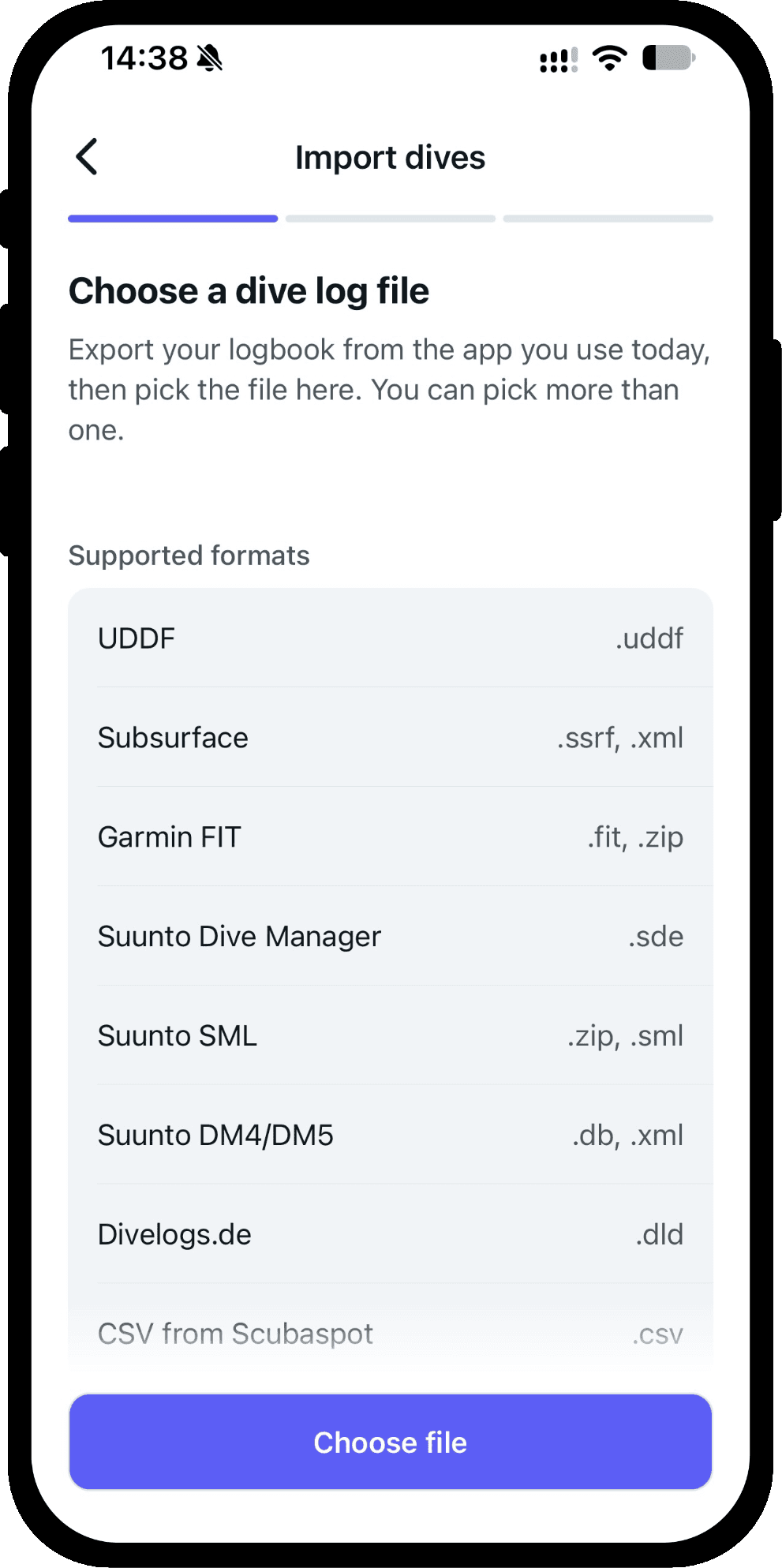
Drop these in and take your dives out in any format above.
- Garmin FIT
.fit.zipGarmin has no dive log import, so nothing writes FIT. Takes the ZIP Garmin Connect downloads as-is. - Suunto DM4/DM5 database
.db.xmlThe logbook database (DM4.db) and the per-dive XML export. Site names are not in it; export SDE for those.
Where to find your file
A dive log lives inside the app that recorded it until you export it. Here is where each one keeps that button.
- Subsurface
- Choose File → Export, then pick Subsurface XML. Save the file anywhere you like; it ends in
.ssrf. Drop that file above. - Divelogs.de
- Log in to your account and open Export, then choose the DLD format. Your browser downloads a
.dldfile, which is a zipped archive of your logbook. Drop it above without unpacking it. Going the other way, the.dldthis converter writes has not yet been tested against a real Divelogs.de import. - Garmin Descent
- Open the dive in Garmin Connect on the web, click the gear icon and choose Export Original. Your browser downloads a
.zipwith the dive's.fitinside; drop either one above. Or plug the watch in and copy the files straight out of itsGARMIN/Activityfolder, as many as you like at once. This direction only: Garmin has no way to import a dive log, so nothing here writes FIT. A freediving session comes out as one dive, not one per descent. - Suunto Dive Manager
- In DM3, DM4 or DM5 choose File → Export and pick SDE; the whole logbook lands in one
.sde. Or drop the logbook database itself, a file calledDM4.dbeven in DM5, from the Suunto folder of your application data. Going the other way, Dive Manager imports the.sdethis converter writes via File → Import; choose the variant that matches the decimal separator your computer uses, or DM5 misreads every depth. Dive Manager 1 and 2 kept a.sdlwe cannot read: open it in DM2 and export SDE first. - Suunto app
- The Suunto app has no import of its own, but SuuntoLink does: its menu has Import dive logs, which sends every
.smlfile in a folder to your Suunto account. Convert to Suunto SML here, unpack the.zipinto a folder, and point SuuntoLink at it. Try one or two files first, because the upload goes straight to your account. Dives from the app itself come out as.fit, which drops in above like a Garmin file. - Anything that exports UDDF
- UDDF is the closest thing dive logging has to a common language, and most dive computer desktop software can write it. Look under File → Export for a UDDF option; the file ends in
.uddfor sometimes.xml. - A spreadsheet from this converter
- Export to CSV here, edit it in any spreadsheet, and drop the saved
.csvback in. The converter reads its own columns in either dialect; a spreadsheet from another tool is not recognised.
Using something we cannot read yet — Shearwater Cloud, MacDive, Diving Log? Tell us which one, and it moves up the list.
Or skip the converting
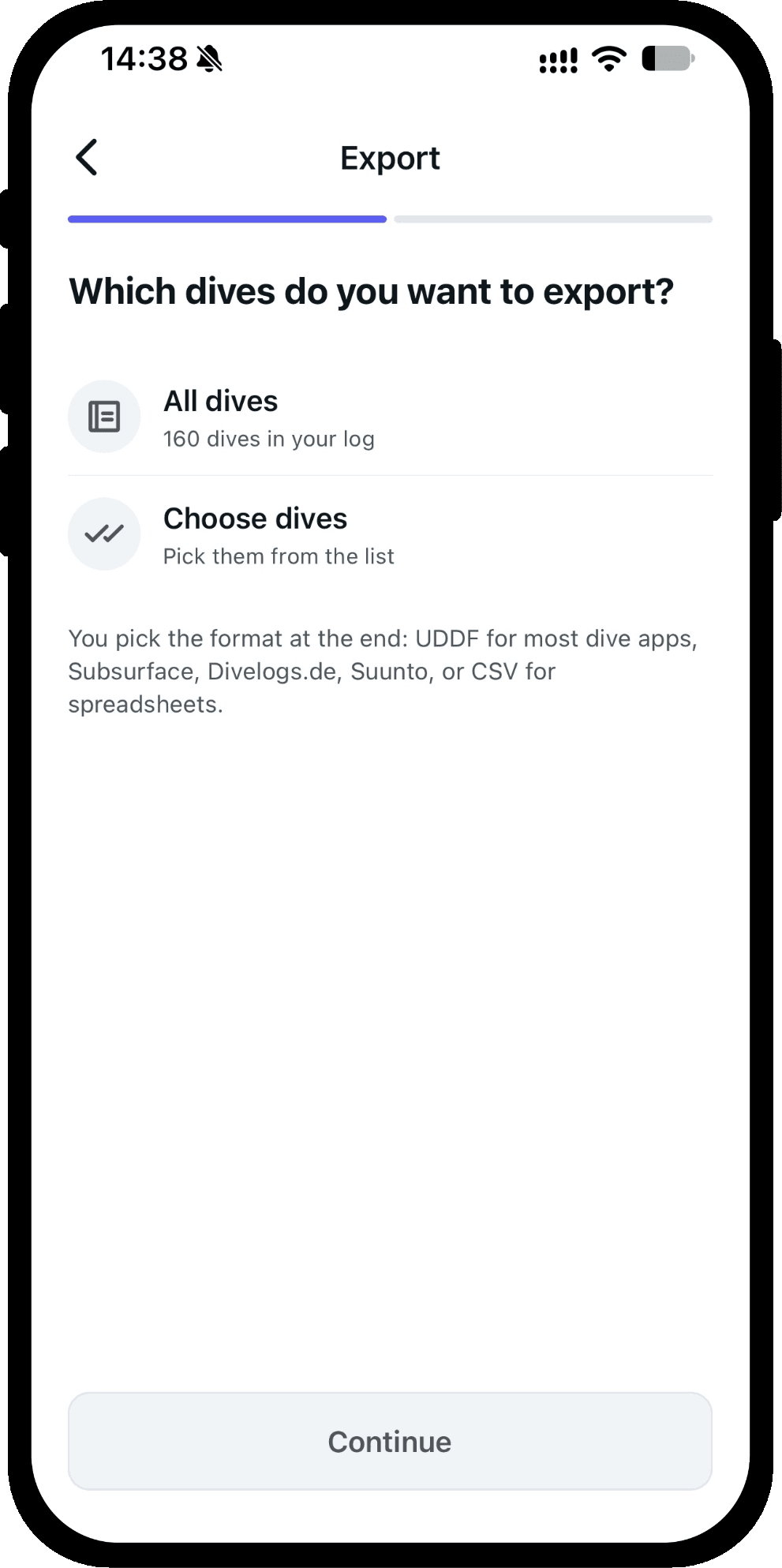
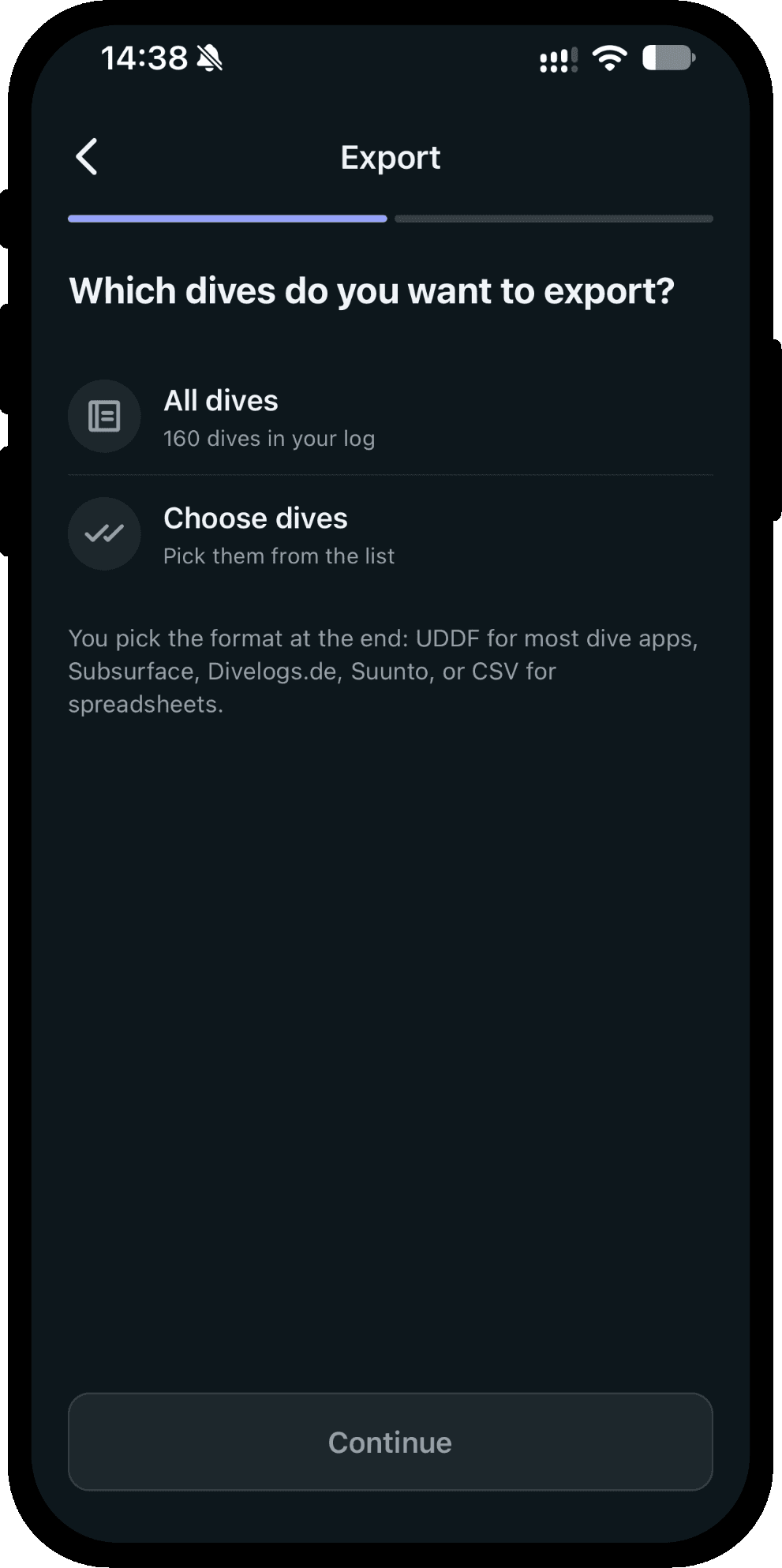
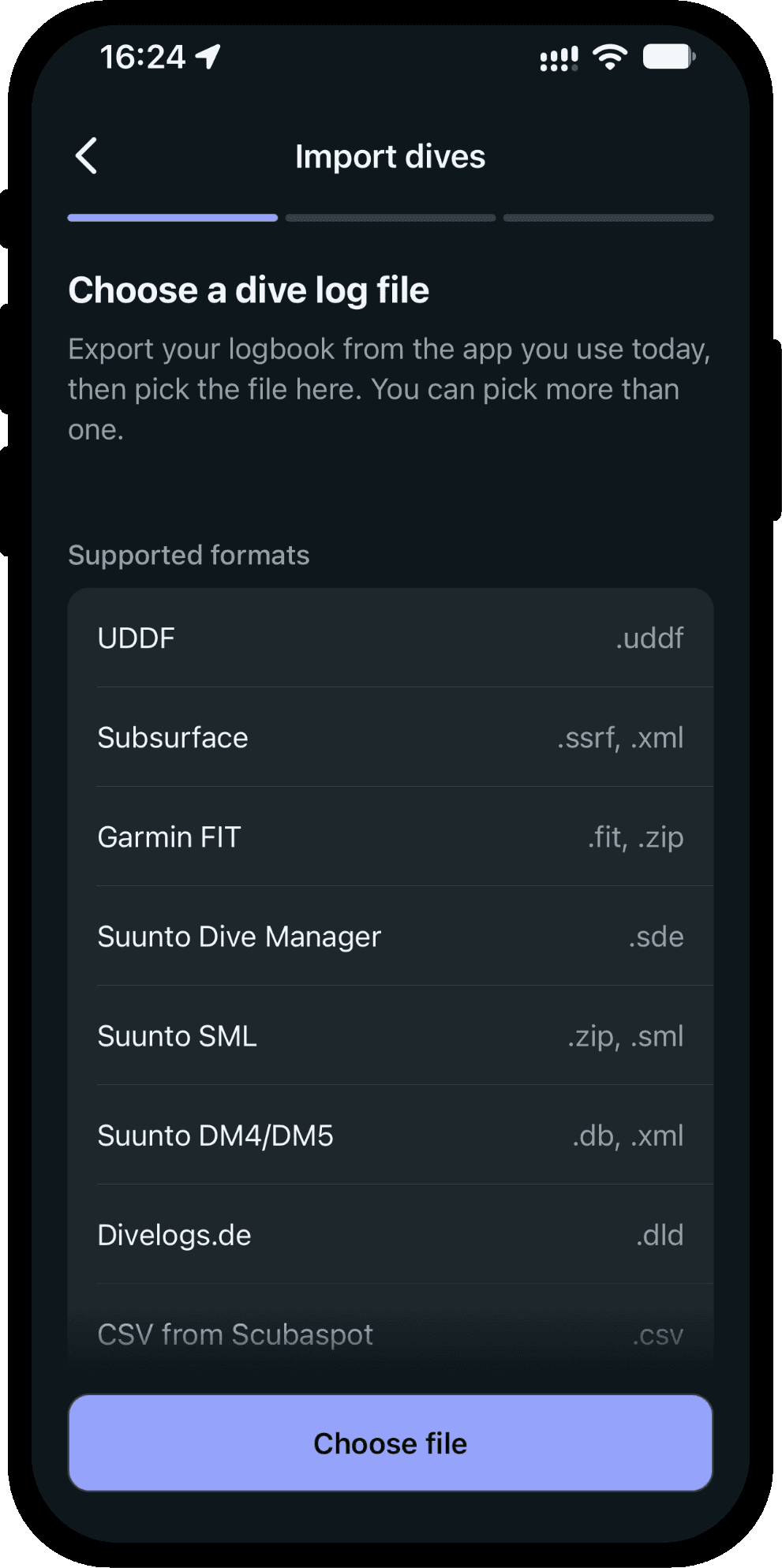
Scubaspot, the free dive log app, imports UDDF, Subsurface, Garmin, Suunto, Divelogs.de and CSV straight into your logbook. Import several files in one go: a dive that appears in two of them is kept once. And when you want to move on, it exports the whole logbook again.